> For the complete documentation index, see [llms.txt](https://help.memberply.com/llms.txt). Markdown versions of documentation pages are available by appending `.md` to page URLs; this page is available as [Markdown](https://help.memberply.com/events/guest-bookings-on-product-pages.md).

# Guest bookings on product pages

Members can book their ticket and one guest directly from the event ticket product page. Paid guest tickets are included in the same checkout. Complimentary guest places are confirmed after the member ticket is paid.

### Set up the product form

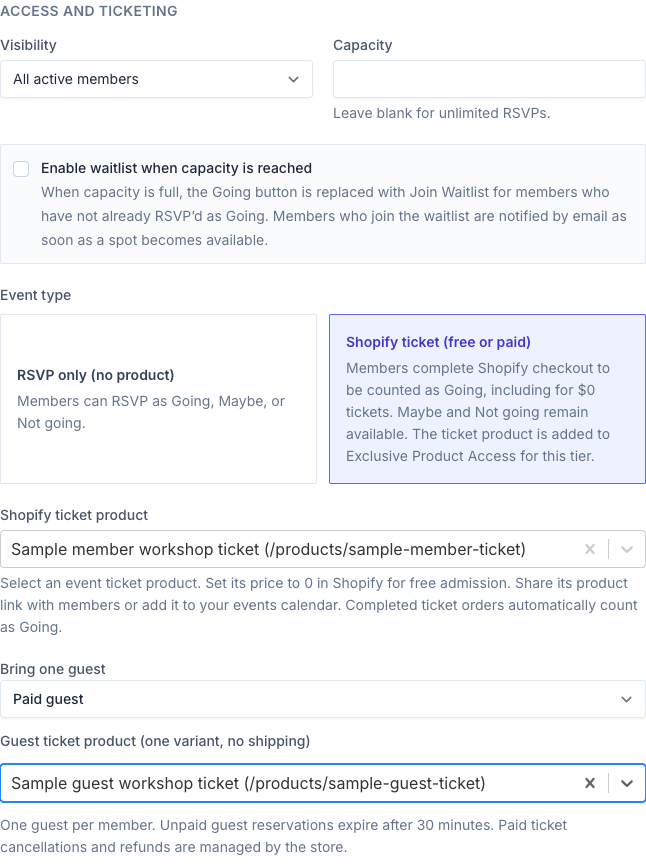
1. Configure a **Shopify ticket (free or paid)** event, select its member ticket product, and choose **Complimentary guest** or **Paid guest** under **Bring one guest**.
2. Click **Enable guest checkout in Shopify** and approve the requested draft-order permission if it has not already been granted. Product-page checkout needs this permission for complimentary guests too, because it creates the member's ticket checkout.
3. Save the event. Memberply automatically disables shipping for every variant of the selected member and paid guest ticket products. A paid guest product must have one variant with a price greater than zero. Use dedicated event ticket products because this also affects purchases outside Memberply. Guest checkout rechecks shipping for existing events and disables it on the tickets being booked before creating checkout. If Shopify cannot confirm the change, the booking does not proceed.
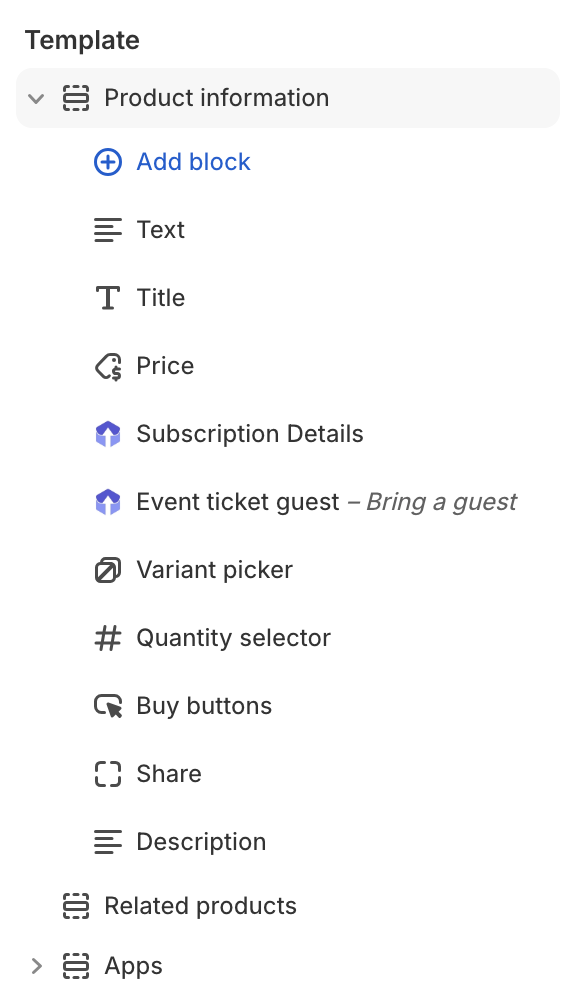
4. In Shopify's theme editor, open the event product template. Under its product information section, add the Memberply **Event ticket guest** app block beside the buy buttons, then save. Your theme must support app blocks in that section.
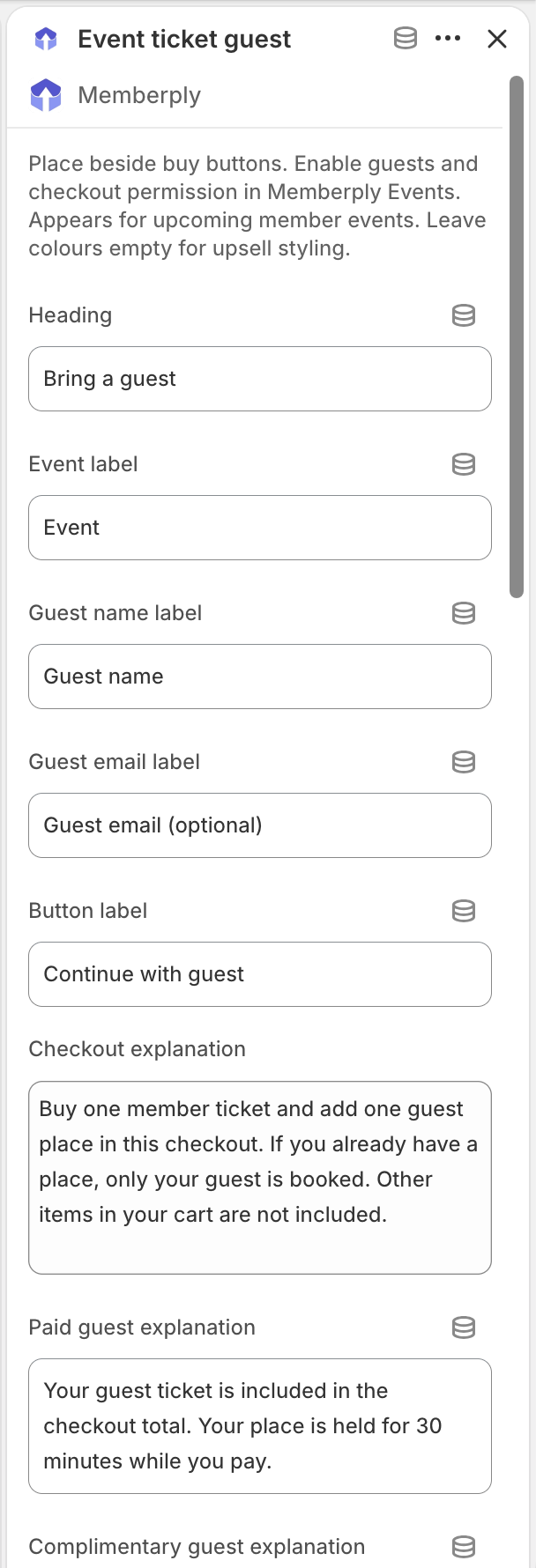
5. Sign in as an eligible member and test the event product page. The block only displays for upcoming events with guests enabled. Its labels and messages can be customized in the theme editor.

<figure><img src="https://2037526248-files.gitbook.io/~/files/v0/b/gitbook-x-prod.appspot.com/o/spaces%2FVJXUszoUtB7SAceDihaK%2Fuploads%2Fgit-blob-c15f990f93f38bc31f8d5c971fae3deb90f629eb%2Fevents-product-guest-setup.png?alt=media" alt="Sample Memberply event settings with a paid member ticket selected, a sample member ticket product, Bring one guest set to Paid guest, and a separate sample guest ticket product"><figcaption><p>Example setup for a paid member ticket and a paid guest ticket, using sample products. Choose Complimentary guest instead when the guest attends free.</p></figcaption></figure>

<figure><img src="https://2037526248-files.gitbook.io/~/files/v0/b/gitbook-x-prod.appspot.com/o/spaces%2FVJXUszoUtB7SAceDihaK%2Fuploads%2Fgit-blob-ac9c462bff6af38de1ea7b4f6203ed5c444c9719%2Fevents-product-guest-blocks.png?alt=media" alt="Shopify product template with Product information expanded, Add block, the installed Event ticket guest app block, and Buy buttons"><figcaption><p>Add Event ticket guest under Product information, alongside the product's buy controls.</p></figcaption></figure>

<figure><img src="https://2037526248-files.gitbook.io/~/files/v0/b/gitbook-x-prod.appspot.com/o/spaces%2FVJXUszoUtB7SAceDihaK%2Fuploads%2Fgit-blob-626320283e31d0ec5ca6c9209e22090ece6c438e%2Fevents-product-guest-settings.png?alt=media" alt="Shopify Event ticket guest settings showing the heading, guest name and email labels, Continue with guest button label, and checkout explanation"><figcaption><p>Select the block to edit its labels and checkout messages, then save your theme changes.</p></figcaption></figure>

### Style the guest box

In Shopify's theme editor, open the event product template and select the **Event ticket guest** app block.

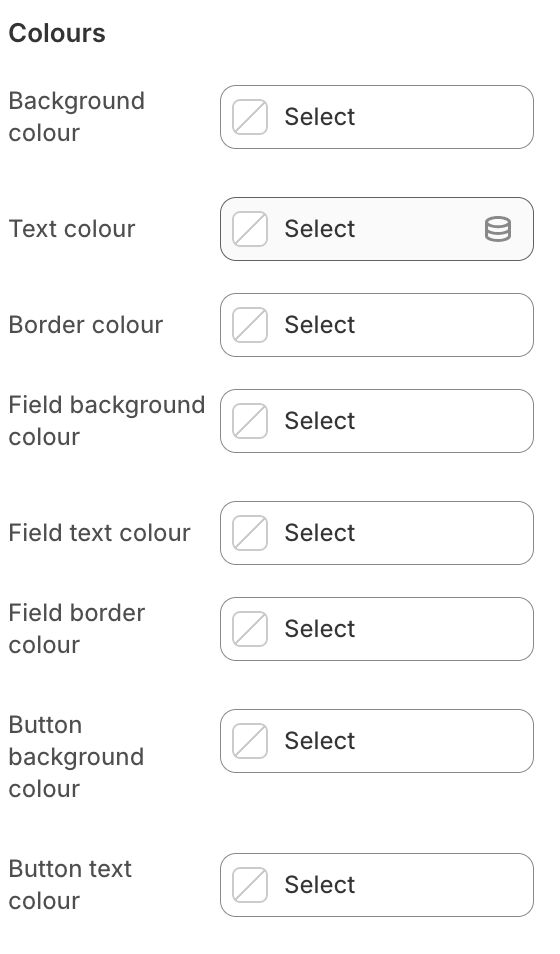
* **Colours**: set the box background, text and border colours, field background, text and border colours, and button background and text colours. Leave a colour empty to use the default upsell-inspired styling: a warm cream card, soft borders, an olive guest note and a muted plum button. The box inherits your theme font.
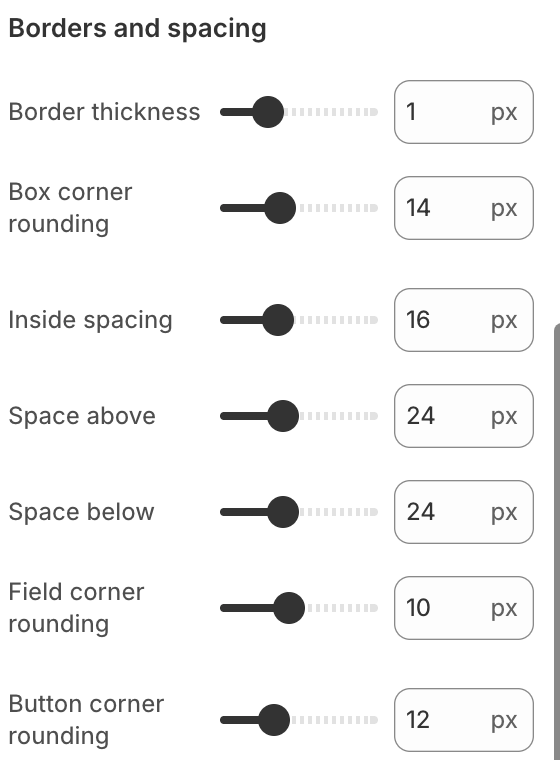
* **Borders and spacing**: adjust the box border thickness and corner rounding, inside spacing, space above and below, and field and button corner rounding. Set the border thickness to zero to hide the box border.
* Edit the heading, field labels, button label and booking messages in the same block.

Save your theme changes. Preview the box on desktop and mobile, and keep text readable against the chosen backgrounds. These settings apply to this product-page block; they do not change the member account screens or Shopify checkout. Products sharing the same theme template use the same block settings.

<figure><img src="https://2037526248-files.gitbook.io/~/files/v0/b/gitbook-x-prod.appspot.com/o/spaces%2FVJXUszoUtB7SAceDihaK%2Fuploads%2Fgit-blob-960b619c11d9722df83c87ee92667b29639cdbc4%2Fevents-product-guest-colours.png?alt=media" alt="Event ticket guest colour settings for the box, fields and button"><figcaption><p>Leave colours empty to use the default styling, or select colours to match your store.</p></figcaption></figure>

<figure><img src="https://2037526248-files.gitbook.io/~/files/v0/b/gitbook-x-prod.appspot.com/o/spaces%2FVJXUszoUtB7SAceDihaK%2Fuploads%2Fgit-blob-f913262526dbf06bca19442293929aa03414b956%2Fevents-product-guest-spacing.png?alt=media" alt="Event ticket guest border and spacing settings showing a 1 pixel border, 14 pixel box corners, 16 pixel inside spacing, 24 pixel outer spacing, 10 pixel field corners and 12 pixel button corners"><figcaption><p>Adjust borders, spacing and corner rounding in the same block.</p></figcaption></figure>

### What members see on the product page

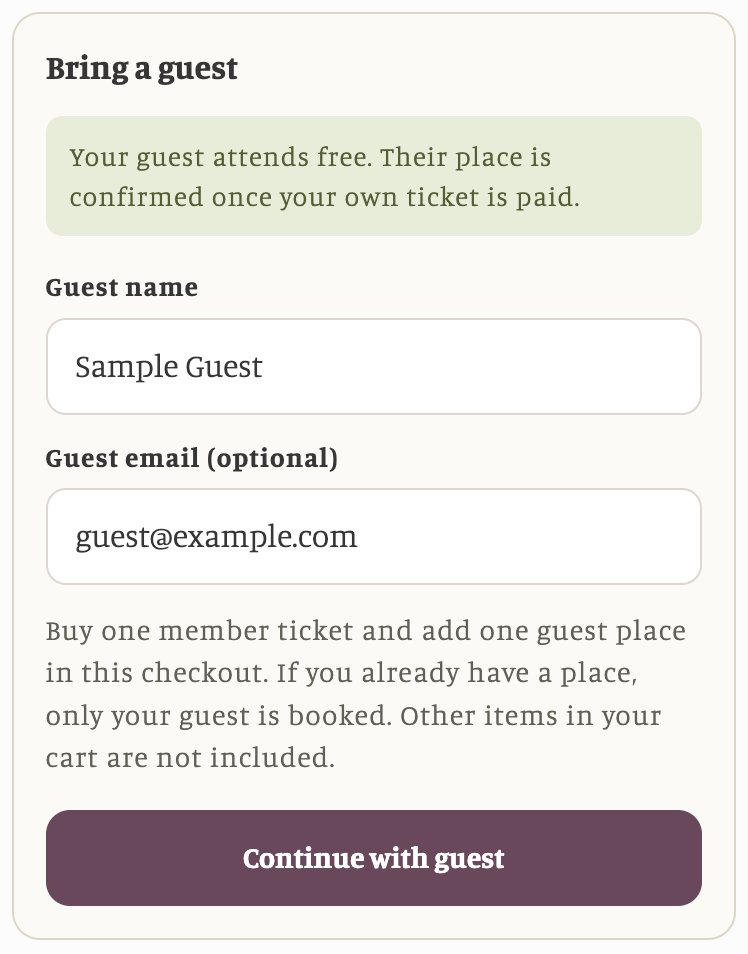
Members choose their ticket variant using the product form, enter the guest's name and optional email, then select **Continue with guest**. If the product is used by more than one eligible event, they choose the event in the block. The checkout contains one member ticket and, for paid guests, one guest ticket. It does not include other items already in the cart. The standard product buy button remains available for buying without a guest.

<figure><img src="https://2037526248-files.gitbook.io/~/files/v0/b/gitbook-x-prod.appspot.com/o/spaces%2FVJXUszoUtB7SAceDihaK%2Fuploads%2Fgit-blob-af1aeafd3a4130d6a22cfa601c5512df68fbec0b%2Fevents-product-guest-form.png?alt=media" alt="Live Shopify product-page Bring a guest form with a sample guest name, optional email address, checkout explanation, and Continue with guest button"><figcaption><p>The installed Event ticket guest block on a Shopify product page, shown with sample guest details. This example uses a complimentary guest; the member still pays for their own ticket.</p></figcaption></figure>

If the member already has a confirmed place, the block books only the guest. The block checks for an existing guest before asking for their details. It shows confirmed guests or a link to continue a pending booking. Repeated submissions reuse the existing booking instead of creating another charge or guest place. Guests can be managed in both Shopify customer accounts and the Memberply member dashboard. Their email is optional and does not send an invitation.

Guest places awaiting the member's payment or a paid guest payment expire after 30 minutes under the [guest reservation rules](/events/plus-one-guest-bookings.md#how-members-book-a-guest). An unpaid combined checkout can be cancelled from the member area; this cancels the checkout for both tickets. After payment, paid-ticket refunds are managed by the store in Shopify. A complimentary guest can be cancelled without refunding the member's ticket.

Product-page guest checkout uses Shopify draft-order checkout. Eligible automatic discounts and discount codes are supported by that checkout; the final total appears there. Shopify inventory controls the ticket products. RSVP capacity controls the guest reservation, not Shopify member ticket admission.

## Use your own form or cart drawer

This built-in block uses a separate Shopify draft-order checkout. To add tickets to the normal cart and open your theme's drawer, follow [Custom guest forms and cart integration](/events/custom-guest-forms-and-cart-integration.md).