> For the complete documentation index, see [llms.txt](https://help.memberply.com/llms.txt). Markdown versions of documentation pages are available by appending `.md` to page URLs; this page is available as [Markdown](https://help.memberply.com/events/plus-one-guest-bookings.md).
# Plus One guest bookings
Allow each attending member to bring one named guest. The guest can attend free or pay for a separate ticket.
## Configure Bring one guest
An event can allow one guest per member. Open **Benefits > Edit Benefits > Events > Edit**, then click **Edit event** on the event card (or **Add event** for a new one). Scroll below **Access and ticketing** to **Bring one guest**.
Choose:
* **No guests**: members attend without a guest booking.
* **Complimentary guest**: each attending member can book one guest at no charge.
* **Paid guest**: each attending member can book one guest with a paid Shopify guest ticket.
The guest setting is independent of **RSVP only (no product)** or **Shopify ticket (free or paid)**, which controls the member's own admission. For example, a free member event can still charge for a guest.
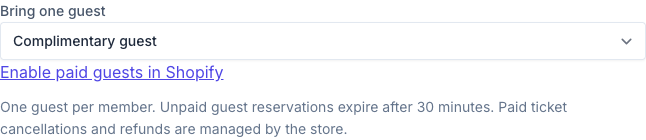
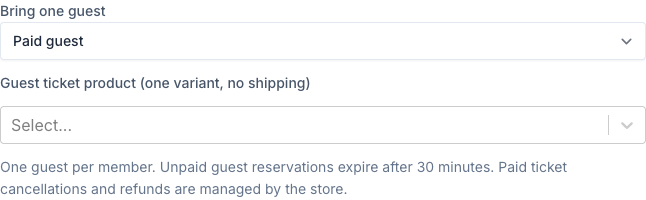
For paid guests, use **Guest ticket product (one variant, no shipping)** to search for and select a Shopify guest ticket product with one variant and a price greater than zero. Saving the event automatically disables shipping on its selected member and paid guest ticket products, including all variants. Use dedicated ticket products, not products that also ship physical goods. This Shopify setting also applies when those products are purchased elsewhere. Shopify manages the ticket price and tax settings. Paid guest checkout requires Memberply's draft-order permission to be granted by the store. If Paid guest is unavailable, click **Enable paid guests in Shopify**, approve the permission in Shopify, and return to the event editor.
The permission link appears when paid guest access needs authorization.
Select Paid guest to show the guest ticket product field.
### If you cannot find the guest setting
Make sure you have opened the individual event with **Edit event**, then scroll below its ticket settings. The setting is not on the membership tier's benefit list or in Notifications and reminders.
If **Bring one guest** is entirely missing, reload Memberply from Shopify admin and reopen the event. If it is still missing, contact support with a screenshot of the expanded event editor. Missing paid-guest permission disables **Paid guest**; it does not hide the whole guest setting or prevent complimentary guests.
### How members book a guest
The member first confirms their own attendance, then enters their guest's name and optional email address in their member area. This works in both Shopify customer accounts and the Memberply member dashboard. Providing an email does not send an invitation or subscribe the guest to marketing.
* Complimentary guests are confirmed immediately when a place is available.
* Paid guests receive a Shopify checkout link for one ticket. The guest is shown as awaiting payment until Shopify confirms payment. Refresh the booking after checkout; background checks also reconcile payment status.
* Each member can have only one active guest booking for an event. Repeating a booking request returns the existing booking.
* Unpaid guest checkouts reserve a place for 30 minutes from the original booking time. The member sees the expiry time. Refreshing or retrying the booking does not restart the timer. Background checks run every minute, so release is not necessarily at the exact second.
* Before releasing a place, Memberply checks the payment status and cancels the unpaid checkout. Completed orders, including payments still processing, do not expire. If Shopify cannot verify cancellation or payment status, the place stays reserved for review.
* After expiry, the old checkout cannot be used. The member can book again if a place is available.
### Capacity and ticket inventory
Confirmed guests and guests awaiting payment count toward RSVP capacity. See [Capacity, RSVPs and waitlists](/events/capacity-rsvps-and-waitlists.md) for how guest reservations interact with member tickets and Shopify inventory.
### Guest changes and refunds
Members can cancel a complimentary guest place or an unpaid guest checkout from their member area. Cancellation releases the reserved place after checkout cancellation is verified. If payment has already been processed, the member must contact the store.
For a paid guest order, manage cancellations and refunds in Shopify. A full refund or order cancellation removes the guest's confirmed place when the payment status is refreshed. A partial monetary refund does not cancel attendance. Memberply does not automatically issue refunds.
See [Attendees and check-in](/events/attendees-and-check-in.md) for guest status, the inviting member, check-in and CSV exports. Events with active guest bookings cannot be deleted.
Guests must be registered through a supported Memberply booking flow. Buying extra quantities with the standard product buy button does not create guest records.
## Other booking experiences
* [Guest bookings on product pages](/events/guest-bookings-on-product-pages.md): install the built-in app block to book the member and guest together through a separate checkout.
* [Custom guest forms and cart integration](/events/custom-guest-forms-and-cart-integration.md): let a developer connect your own form and normal cart drawer, including checking for an existing guest before displaying fields.
The one-active-guest limit applies across these experiences for the same member and event.