> For the complete documentation index, see [llms.txt](https://help.memberply.com/llms.txt). Markdown versions of documentation pages are available by appending `.md` to page URLs; this page is available as [Markdown](https://help.memberply.com/how-to-skyrocket-the-number-of-members-joining-your-membership/enable-floating-membership-widget.md).
# Enable the floating membership widget
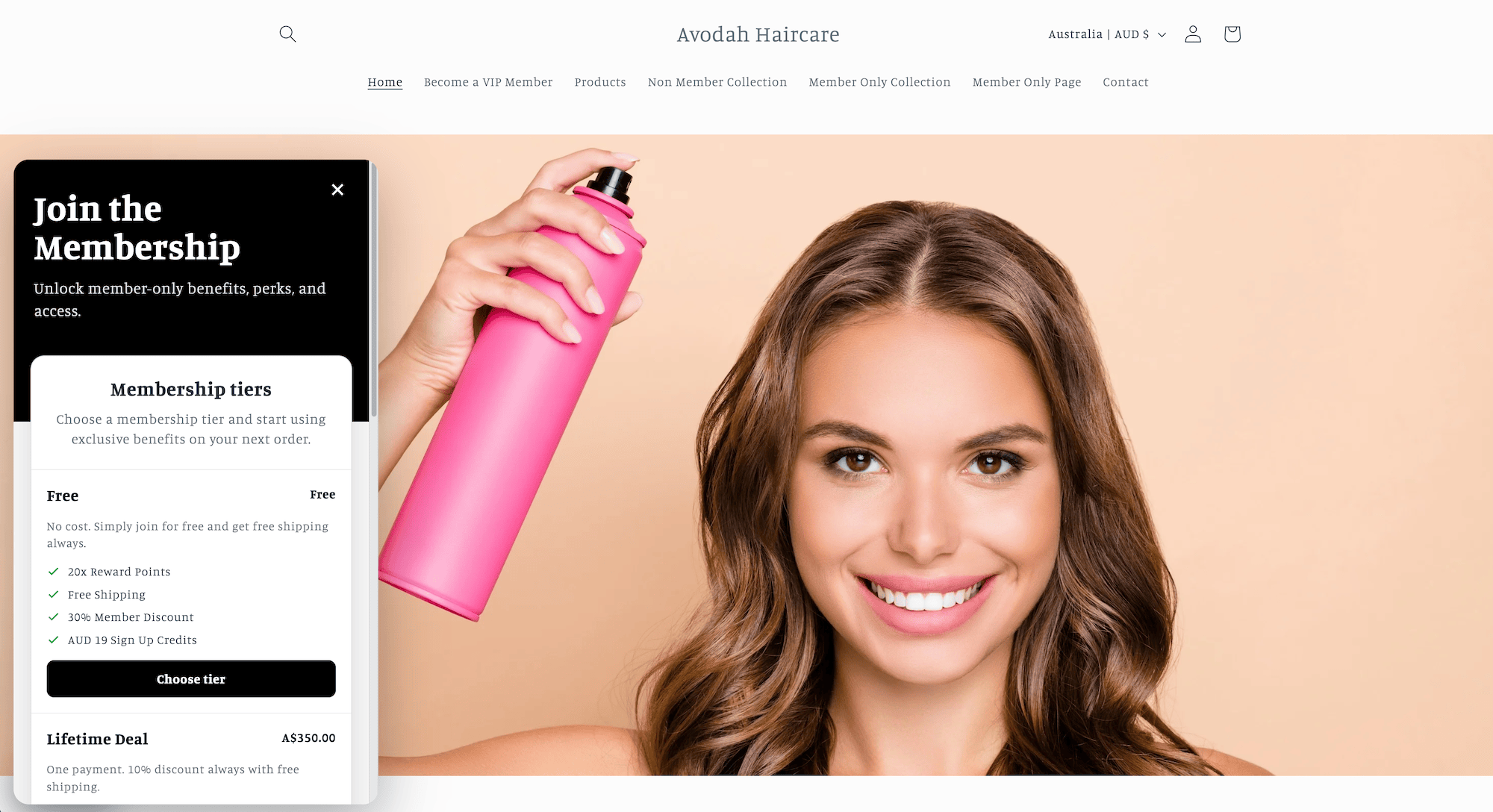
The floating membership widget helps shoppers discover your membership program from any page on your storefront. It appears as a small floating badge, with **Perks** as the default badge text. When a shopper clicks it, a panel opens showing your enabled membership tiers and the benefits available in each tier.
In Memberply, open **Floating Widget** under **Grow** for the storefront preview, prerequisites, setup checklist, and Shopify theme editor shortcut.
Use the Floating Membership Widget alongside your product and cart upsells to keep your membership program discoverable throughout the shopping journey.
This is what the floating widget looks like:
## Before you start
Make sure you have already:
1. Created and enabled at least one membership tier.
2. Added the benefits you want customers to see.
3. Published your membership tier product on your storefront.
If you do not have any enabled membership tiers, the floating widget will stay hidden.
## Add the widget to your theme
1. In the Shopify dashboard, on the left sidebar, open **Online Store** (then **Themes** if your admin shows it as a submenu).
2. On the right side, click **Edit theme** next to your theme.
3. In the top left corner, click **App embeds**.
4. Enable **Memberply Floating Membership Widget**.
5. Click the arrow caret on the left of **Memberply Floating Membership Widget** to open its settings.
6. Customize the badge text, heading, intro text, colors, and left or right position if needed.
7. Click **Save**.
## What shoppers will see
The widget shows:
* A floating **Perks** badge by default.
* A panel promoting your membership program.
* Enabled membership tiers.
* Pricing for each tier.
* Enabled benefits for each tier.
* A sign-in link for existing members.
If a shopper is already an active member, their current tier appears first and is marked as their current tier.
## Notes
The widget is designed to fail safely. If your store has no enabled membership tiers or the widget cannot load the membership data, it will not appear on the storefront.